Friday, January 3, 2014

How to Use Adobe InDesign CS6

To learn InDesign is easy and simple. If you know how to use Microsoft Office Word, you can simply understand InDesign. Here is the video lecture of Adobe InDesign CS6: http://tv.adobe.com/show/learn-indesign-cs6/%7B%7B.


Thursday, January 2, 2014

How to Use Adobe Illustrator CS6

Last time, I posted the video lecture of Adobe Photoshop CS6. This time, I'm going to post the video lecture of Adobe Illustrator CS6. I will link to the website. Here is it: http://tv.adobe.com/show/learn-illustrator-cs6.


Wednesday, January 1, 2014

Jersey Boys

I love Broadway shows. This time, I saw Jersey Boys, a famous Broadway musical. Jersey Boys is a story of The Four Seasons, the 1960s rock'n roll group: the formation, success, and break-up of the group. I'm going to link to the detail page here: http://en.wikipedia.org/wiki/Jersey_Boys.

I was really happy to see Jersey Boys because it was wonderful and I could listen to famous songs, such as Sherry, Big Girls Don't Cry, Oh, What A Night, Can't Take My Eyes Off You, Walk Like A Man, Bye Bye Baby, Let's Hang On, and so on.

Here are show clips below.


Sunday, December 29, 2013

How to Put Text on a Path or in a Shape

You can sometimes see text in a shape or on a path. It is wonderful to make different images with text. I'd like to explain how to put text on a path or in a shape in Photoshop CS6 here.

1. Open a new file; any size is okay. 

2. Select Custom Shape Tool in the toolbox. Choose No Color in Fill and in Stroke on the control panel. Select the shape you want, and then drag it like a image below; I chose Heart Card here. 


3. Select Horizontal Type Tool in the toolbox. Click the path on the heart shape, and your mouse will change and you will see the circle point on the path like a image below. Type any text on it. 


4. If you put text all on the path, the circle on it will change like a image below. 


5. Choose Character in the Window drop-down menu, and then adjust Horizontally scale if you need. After then, the path on the heart shape will change like this below. 


Here is the way to put text in a shape below. Follow the step to # 2 above. After then, select Horizontal Type Tool in the toolbox. Click in the heart shape, and your mouse will change and you will see the circle point on the path like a image below. Type any text in it. 


This is an output.


You can compare the output text on a path and text in a shape below.


Apply this skill to your works.


Saturday, December 28, 2013

How to Make Clear Tape in Photoshop

When producing a image in Photoshop, you sometimes need clear tape. I'm going to let you know how to make clear tape. It is simple to do that.

1. Click New in the File drop-down menu. Create a new canvas: 500 PX by 300 PX. 


2. Create a new layer on the Layers panel: a hot key is CTRL + J.  After then, select Rectangular Marquee Tool in the toolbox and then drag it like a image below. 


3. Select Eyedropper Tool in the toolbox, and then select the color you want; I chose light gray. Fill out the box. After then, deselect it: a hot key is CTRL + D.  


4. Choose Polygonal Lasso Tool in the toolbox. After then, click "Subtract from selection" icon on the control panel: a hot key is ALT. Create jagged edges like a image below. 


5. Press the Del key, and then deselect. Create jagged edges on the other side. If you do that, it will be like a image below. After then, use Dodged Tool or Burn Tool in the toolbox in order to look realistic to the tape. 


6. Click "Add a layer style" icon on the bottom on the Layers panel, and choose Drop Shadow with setting the opacity to 25%. Click OK. 


7. After pressing CTRL + T, rotate this tape like a image below. After then, go to the File drop-down menu and click Save for web; save it for PNG.


After then, you can use the clear tape like a image below. That's it. 


Sunday, December 22, 2013

Popular Christmas Songs

Christmas is reaching. These days, we can easily listen to Christmas songs  from the radio, TV, or in stores. I believe that listening to Christmas songs at this time of the year is best. Here are popular Christmas songs below.

1. Let It Snow! This song was recorded in 1945. It has been sung by many singers since then. I prefer to listen to "Let it snow" by Michael Bublé, who is a Canadian vocalist, songwriter, and actor.


Here is "Let it snow" by Dean Martin below.


2. It's the most wonderful time of the year by Andy Williams. This song was recorded in 1963.


3. A Holly Jolly Christmas by Burl Ives. This song was recorded in 1965.


4. The Christmas Song (Merry Christmas to You) by Nat King Cole.


5.I'll be home for Christmas by Michael Bublé.


6. Sleigh Ride by The Ronettes.


7. Santa Baby by Eartha Kitt.


8. (There's no place like) Home for the Holidays by Perry Como.

Saturday, December 21, 2013

How to Get Rid of Pimples, Moles, Freckles, or Wrinkles on Your Face in a Photo

Most people tend to want themselves to look pretty, beautiful, or handsome in their picture. Because of this, many people, especially young people like retouching their pictures before uploading the photos on SNS. Today, I'd like to explain how to get rid of pimples, moles, freckles, or wrinkles on your face in the photos, using Adobe Photoshop CS 6. It is so simple that it takes a few seconds to do that.

1. Open a photo with pimples, moles, freckles, or wrinkles. I used this photo below. There is a pimple on the face.


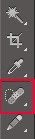
2. Go to the toolbox, and then select Spot Healing Brush Tool; a hot key is J.


3. After then, click the pimple, and it will be removed like the image below. How easy it is!


Here is an output below.


Like Spot Healing Brush Tool, you can use Healing Brush Tool, or Patch Tool in order to fix pimples.

If you want to correct them, using Healing Brush Tool, click a nice skin area on the face, with holding ALT key. After then, drag it and click the place you want to fix, and it will be corrected.


If you want to use Patch Tool to get rid of pimples, select the area at first, using Lasso Tool in the toolbox.


After then, click Patch Tool, drag the selection to a new location, and then release the mouse. You can see the pimple removed.


After removing the pimple, if you need to modify skin tone around the correction, use Blur Tool, Sharpen Tool, Dodge Tool, or Burn Tool in the toolbox. If not, you don't need to do that.