Friday, January 10, 2014

How to Create a Snow Effect in Photshop

Even though I don't like winter, I love snow. Whenever it snows, I try to take a picture. Even if it doesn't snow, I can make a snow effect in Photoshop. Here is a way to do that.

1. Open a file that you want to create a snow effect. I opened this photo below.


2. Create a new layer on the Layers panel: Shift + Ctrl + N. Select the Edit drop-down menu < Fill. Choose Black in the Fill window.


3. Select the Filter drop-down menu < Noise < Add Noise. Set Amount to 100%, select Uniform in Distribution, and check out Monochromatic in the Add Noise window. After then, click OK.


4. Choose the Filter drop-down menu < Other < Custom. Set figures like a image below in the Custom window. After then, click OK.


5. Select Rectangular Marquee Tool in the toolbox, and then drag it. Press Ctrl + T like a image below. After then, expand it as big as the whole canvas size.


6. Highlighting Layer 1 in the Layers panel, select Screen like a image below, and the image will have a snow effect like this below. However, you need to make snow look more natural.


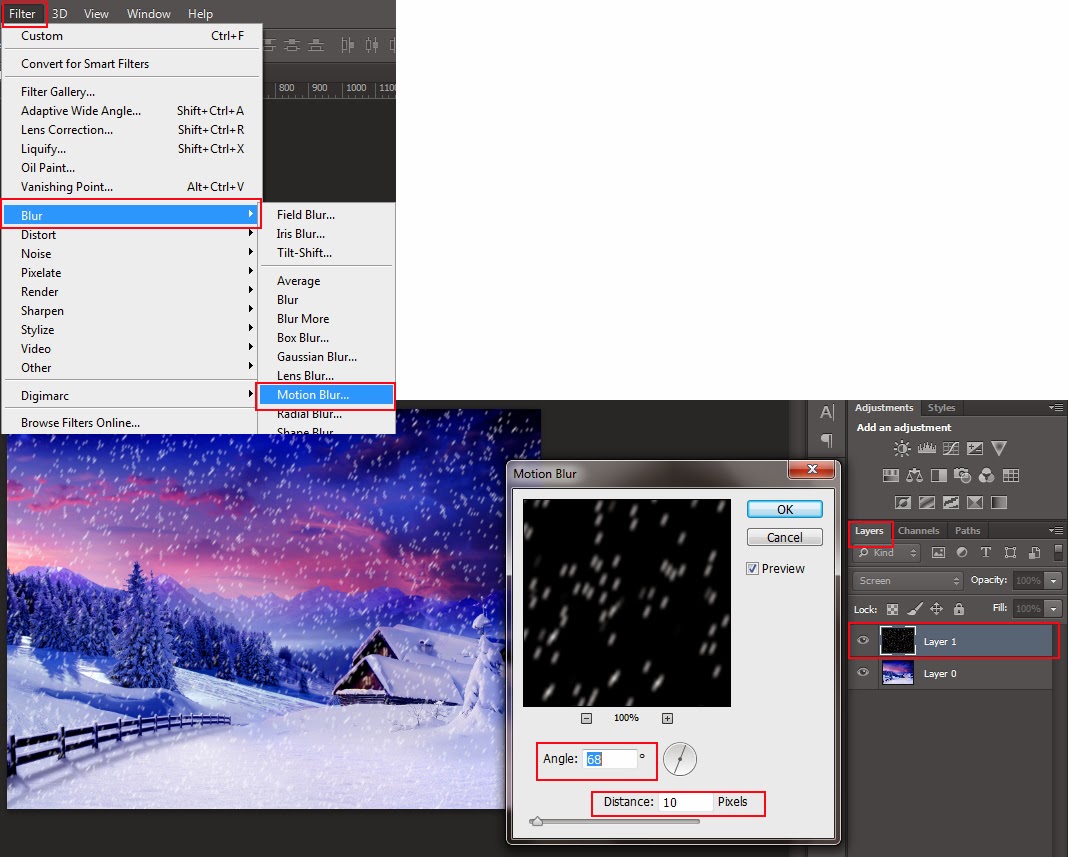
7. Choose the Filter drop-down menu < Blur < Motion Blur. Set Angle to 68 degrees and Distance to 10 pixels; it depends on your photo. You will see a more natural snow effect on your photo.  

Here is an output. You can compare before and after below.


Thursday, January 9, 2014

Shazam - an Awesome Music Recognition Application

When listening to new or unfamiliar songs, I wonder the name of them. In this case, I usually use Shazam, a music recognition application. Shazam is really attractive because the way to use is simple - just touching to Shazam and it quickly lets me know the title of songs. Moreover, whenever I use Shazam, it gives me the exact information of the songs. This application is awesome.

If you have never used Shazam, I recommend you use it. I believe that you will love it. I'm going to link to the website of Shazam here: http://www.shazam.com.

Wednesday, January 8, 2014

How to Make a Reflection in Photoshop

You can often see some images or text reflected. A reflection makes images or text look different. I'll let you know how to make a reflection in Adobe Photoshop CS6 here.

1. Open a new file with a black background.

2. Using Horizontal Type Tool in the toolbox, type any text. I wrote "Reflect" here.


3. Duplicate the Reflect layer on the Layers panel, and the Reflect copy layer on it will be created like a image below.


4. With holding on the Shift key, using the arrow down key on your keyboard,  put down Reflect text. After then, with highlighting the Reflect copy layer on the Layers panel, choose the Edit drop-down menu < Transform < Flip Vertical. The direction of Reflect text will change like a image below.


5. Select Rasterize Type Layer in the Type drop-down menu.


6. Click "Add layer mask" icon on the bottom on the Layers panel.


7. Choose Gradient Tool in the toolbox, and select Linear Gradient on the control panel: click the third one - Black, White. After then, set Opacity on the Layers panel to 27%; it depends on you in order to adjust Opacity.


8. Holding on the Shift key, drag it from down to up like a image below. That's it.


Here is an output below.


When you use an image to make a reflection, it is the same process as text above.

Tuesday, January 7, 2014

How to Use Adobe Creative Cloud and CS6

The latest version of Adobe is Creative Cloud. If you visit this website, you can watch more video lectures of Adobe Creative Cloud and CS6: http://tv.adobe.com/channel/how-to/how-to-cs6-tutorials.


Monday, January 6, 2014

How to Use Adobe Dreamweaver CS6

If you want to know how to use Adobe Dreamweaver CS6, I'm going to link to the website. Here is the video lecture of Adobe Dreamweaver CS6: http://tv.adobe.com/show/learn-dreamweaver-cs6.


Sunday, January 5, 2014

How to Use Adobe After Effects CS6

If you want to make your videos look more attractive, you should learn Adobe After Effects. Here is the video lecture of Adobe After Effects CS6: http://tv.adobe.com/show/learn-after-effects-cs6.


Saturday, January 4, 2014

How to Use Adobe Premiere Pro CS6

Many users upload their videos online, using various video editing programs. Among them, if you want to know how to use Adobe Premiere Pro CS6, I'm going to link to the website. Here is the video lecture of Adobe Premiere Pro CS6: http://tv.adobe.com/show/learn-premiere-pro-cs6.